Pick Up the Pieces.Made 2026, out now, free.

Play in your browser
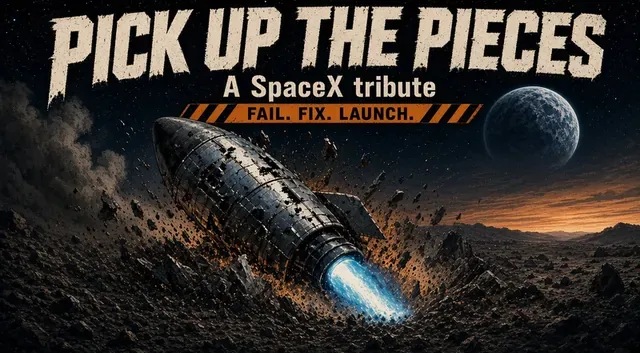
A Game Boy Color game in twelve chapters, following the real SpaceX story from 2002 to 2026.
True SpaceX and Tesla fans will find a few things in it they'll love.
The game opens on its own page. You don't need to install anything.
Download the gameOther ways to play: SameBoy, phone apps, or a Chromatic
pick-up-the-pieces.gbc · 1.0 MB
- System
- Game Boy Color only
- Size
- 1.0 MB
- Saves
- On the cartridge, kept by a battery
- Chapters
- 12
- Price
- Free
How it runs
binjgb, WebAssembly
In your browser, the play page runs this exact file in binjgb, an open-source Game Boy Color emulator built to WebAssembly. Both come from this site.
The same file, unchanged, runs from a cartridge on a Chromatic, a Game Boy Color, or a Game Boy Advance.
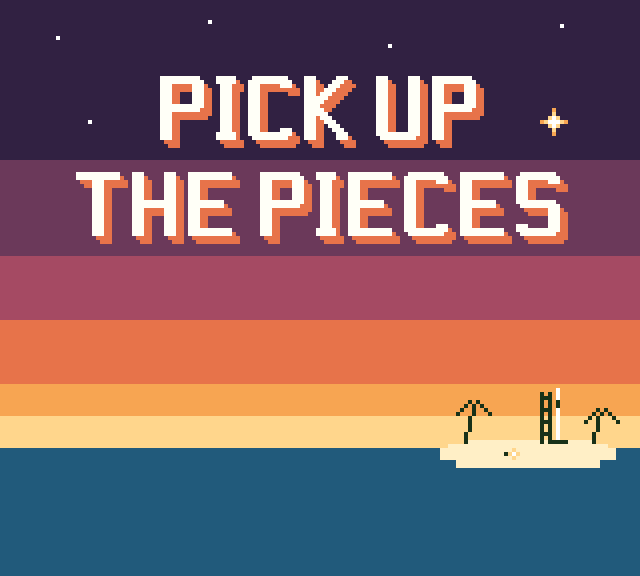
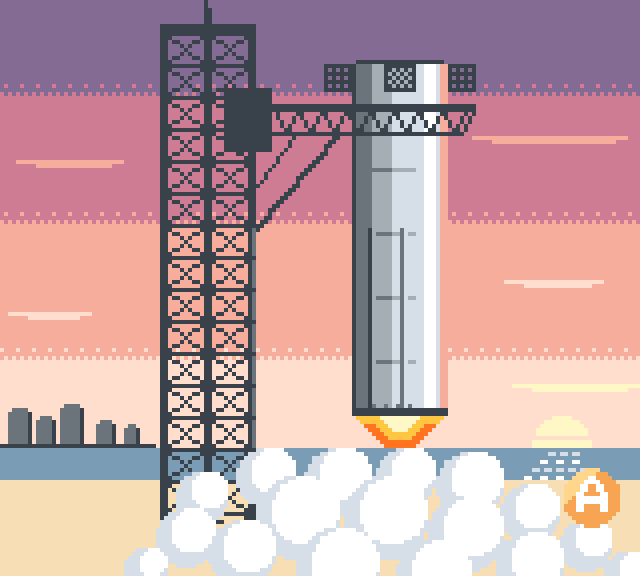
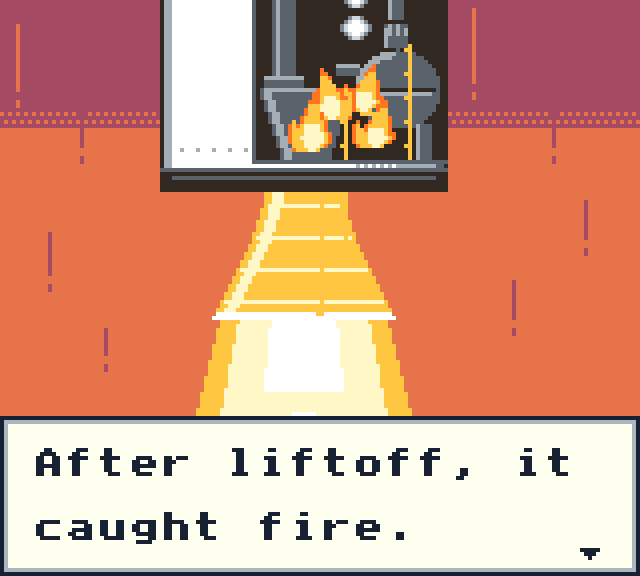
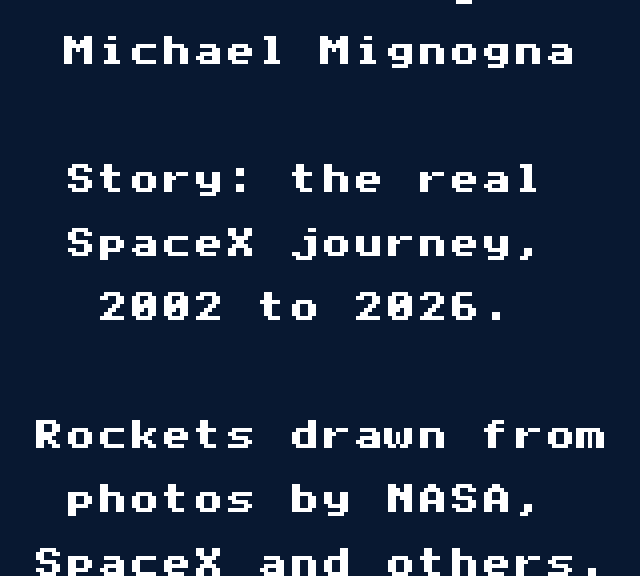
The frames at the top of this page were recorded from it, in that emulator.

What's in it
Screenshots from the game
Twelve chapters, start to finish, following what actually happened between 2002 and 2026.
Every chapter works the same way: something breaks, you pick up the pieces, learn one small thing, and go again.
It's drawn at the Game Boy Color's 160 by 144, in the colors that hardware can actually show.
Box and cartridge label
Print these if you make your own cartridge.
Download the box front for print (PNG, 125 mm square, 300 dpi)Download the cartridge label for print (PNG, 42 by 37 mm, 300 dpi)


Why I made it
I made this game for my son, Giorgio, who's 7.
He's at the age where one thing going wrong feels like the end of it. I wanted him to have a story where the rocket breaks apart on the first try, and on the second, and the next chapter starts anyway, until the legs finally hold.
In The Carrot Seed, everyone tells the boy that nothing will come up. He keeps watering the dirt. This game tells that same story with rockets.
Keep going.
How to play it
To play somewhere other than your browser, pick a way below. Every path starts with the same file and ends with the game running.
01 / 04
On a Mac or a Windows PC
Free. About two minutes of setup.Get SameBoy, a free Game Boy Color emulator, for your Mac or your PC. It's the most accurate one there is, it has no ads, and it costs nothing.
Download pick-up-the-pieces.gbc. Your browser drops it in your Downloads folder.
Open SameBoy, choose File, then Open, and pick the file you just downloaded. The game boots straight into the title screen.
Play. The arrow keys move, and SameBoy's settings list the rest of the keyboard and let you change any of it. It takes a USB or Bluetooth controller too.
SameBoy ships ready-made for macOS and Windows. On Linux, build its SDL version from source, or follow the Android steps and use RetroArch.
02 / 04
On an iPhone or an iPad
Free. The whole thing happens on the phone.Get SameBoy from the App Store. It's the same free emulator as the desktop version, with no ads and no tracking.
Open this page in Safari on the phone and download pick-up-the-pieces.gbc. It lands in the Files app, under Downloads.
Open SameBoy, tap the Game Boy screen, choose Library, tap Import ROM files, and pick the file.
Play with the buttons on screen, or pair a PlayStation, Xbox, or Switch controller and use that instead.
If Import ROM files can't see the file, press and hold it in the Files app, tap Share, then pick SameBoy. That route always works.
03 / 04
On an Android phone
Free, but it takes more setup than the other three.Install RetroArch from its own site, or from F-Droid. Skip the Play Store build: it's years out of date and it can't download cores.
Open RetroArch, go to Online Updater, then Core Downloader, and install the core called Nintendo - Game Boy / Game Boy Color (SameBoy). That's the same emulator underneath as the Mac and iPhone apps.
Download pick-up-the-pieces.gbc on the phone.
Back in RetroArch, choose Load Content, find the file, and pick the SameBoy core when it asks which one to use.
There's no SameBoy app for Android. RetroArch's SameBoy core runs the same emulator. If you have a Mac, a PC, or an iPhone, that setup is easier.
04 / 04
On a real Game Boy Color
Costs money, and you need a cartridge as well as the handheld. It's the way the game was built to be played.Buying a Chromatic is the first step. It only reads cartridges. It has no card slot and no cable, so you can't load a file onto it from a computer. An original Game Boy Color and a Game Boy Advance work the same way. So you need a cartridge with Pick Up the Pieces on it, and there are two ways to get one. Both work.
Get the machine. The ModRetro Chromatic is the one I made this game for. It's built on an FPGA, so it runs cartridges like real hardware instead of emulating them. An original Game Boy Color or a Game Boy Advance works too. The grey Game Boy from 1989 does not, because this game is Game Boy Color only.
Get a Chromatic (opens in a new tab)
If you buy one through that link, I earn a commission.
Download pick-up-the-pieces.gbc onto the computer you'll use to set the cartridge up. Same file either way below.
Get that file onto a cartridge, by route A or route B. Then play.
A flash cartridge with a microSD card in it
The usual way. Buy the cartridge once, and you can change what's on it whenever you like.
Get a flash cartridge that handles MBC5, the memory chip this game asks for. An EverDrive-GB X5 or X7 from Krikzz, or an EZ-Flash Junior, all do. So do the smaller ones from insideGadgets and BennVenn.
Take the microSD card out of the cartridge, put it in your computer, and copy pick-up-the-pieces.gbc onto it. Nothing else to do: no renaming, no patching, no particular folder.
Put the card back in the cartridge, put the cartridge in the machine, and switch it on.
The cartridge shows its own menu with what's on the card. Choose Pick Up the Pieces and it starts.
A blank cartridge you write the game onto once
This makes one cartridge of the game that boots like a store-bought one. It takes more setup the first time, and none after that.
Get two things: a blank flashable Game Boy Color cartridge of 1 MB or bigger that uses MBC5 and can save, and a cartridge writer to put the game on it. insideGadgets sells both, and their writer is the GBxCart RW.
Install FlashGBX on your computer. It's free and open source, it runs on Windows, macOS, and Linux, and it drives the GBxCart RW. insideGadgets' own flasher software does the same job if you'd rather use that.
Put the blank cartridge in the writer, plug the writer into the computer by USB, and open FlashGBX. It usually detects the cartridge on its own. If it doesn't, choose the cartridge by name from its list, and go by whatever the cartridge's own instructions say.
Point it at pick-up-the-pieces.gbc as the ROM to write, and write it. A megabyte takes a minute or two. Don't unplug the writer until it says it's finished.
Take the cartridge out of the writer, put it in the machine, and switch it on. There's no menu. It boots straight into the title screen, the same as a store-bought cartridge.
Neither route needs the file changed. What comes off this page is what goes on the cartridge. And either way the game saves onto the cartridge, like an original Game Boy Color cartridge.
Support
The game is free and will stay free. Nothing in it is locked or time-limited.
If you want to support it, you can buy me a coffee. The money goes toward the next game.
Where the money goes
It all goes back into the work.
If that ever changes, I'll say so right here.